

Everyone uses search, and we are all familiar with keyword suggestions.
Variously known as autosuggest, autocomplete, or type-ahead, regardless of the name, it does the same thing – assist the searcher in typing a search keyword.

Google has set the standard for search keyword suggestion – as the searcher types, related keywords are suggested for the searcher to choose, thus executing the search.
Searchers are so accustomed to this suggestion approach, that many site search experiences are implemented similarly, such as Amazon.
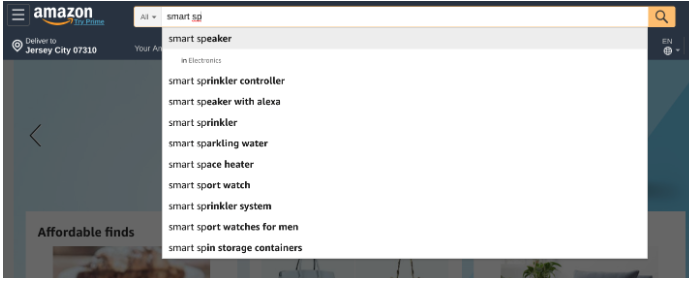
Implementing AutoSuggest in Site Search
If you are responsible for your site search experience, you undoubtedly want to implement autosuggest, too.
Fortunately, just about every site search engine supports that function, and open source search engines (such as Solr and Elasticsearch) have multiple ways to implement autosuggest – and can allow you some control over how it works.
Many Solr installations take a simple approach with Solr Suggester, but there are also other ways to implement keyword suggestion in Solr.
Elasticsearch also offers Completion Suggester with similar results. Your site search engine probably does, too.
While there are many variations in how each of these components decide which keywords to suggest, there are typically two basic approaches:
- Dictionary-based. Suggests words that are found in the search index. This is a good idea, because it ensures that you will never get a “not found” – at least one of the pages has the word. You can imagine that when the search box suggests a word to search for and you get no results, that is a frustrating user experience.
- Activity-based. Suggests the most popular words that searchers enter. This makes sense, but if a popular word gets no results, it will still be suggested using this method.
What you really want is a combination – you’d like to suggest the more popular searches at the top of the list, but eliminate those that find no results.
But wouldn’t it be best of all if you went further? What is really the best is to suggest popular keywords that actually help searchers find what they are looking for.
But that begs a question: how do you know which searches are successful?
Identifying Successful Searches
There is no simple formula that helps you identify searches where searchers find what they are looking for, but there are a couple of red flags for failed searches:
- No-result searches. As described above, if a search yields a “not found” message, you can be sure that it was unsuccessful.
- No-click searches. If the searcher doesn’t click on any results, you can bet that the search failed. While Google might be able to show stock prices or the weather on its results page – and this answers the searcher’s question – a successful site search usually depends on clicking at least one page.
So, it would be better if you were suggesting keywords that at least got results and clicks, but that usually doesn’t go far enough. Lots of search results that get clicked are still disappointing.
So how do you know when a click fails? You probably don’t know for sure, but there are potential signals:
- The searcher clicks a result and returns to the search results page to look some more.
- The searcher clicks a result and exits the site.
- The searcher clicks on a result and does another search from that page.
- The searcher clicks on a result and clicks on a link in the site navigation.
Are all of those clicks failures? Probably not.
Some high exit rate pages might be successes, such as blog posts or answers to support questions. But for most content, it’s likely that these behaviors indicate failures.
Are there signals for success? Definitely! You could look at behaviors such as:
- The searcher clicks on a result and adds a product to the shopping cart.
- The searcher clicks on a result and spends a long time on that page.
- The searcher clicks on a result and scrolls slowly to the bottom of a long page.
- The searcher clicks on a result and clicks another link in the content of that page.
Again, are all of these sure-fire signs of success? Nope. But they are more likely to be successful than when searchers are on a page for a short time and don’t engage.
Are all sites the same? Not at all. What might be a success on your site might not be very successful on other sites.
One example is time spent on page. If your site is a catalog of very simple products, what constitutes a long time on the page might be very different from a B2B site with technical specifications.
Customize success criteria to your site.
Once you’ve decided what success looks like, you can collect these metrics from some analytics systems or with your own JavaScript, but how do you interpret them?
It’s seductive to just implement rules that say that some of these things are good and some are bad, but it is more reasonable to correlate these behaviors with conversions or other task completions so that you truly are weighing your algorithm to provide a more nuanced view of which searches are successful and which are not.
Using Success Data in AutoSuggest
Some who have implemented autosuggest using success data find that merely suggesting more successful keywords results in a couple of points of improvement in search success – without any content changes or engine tuning. It’s truly an automatic improvement.
Unfortunately, not all autosuggest mechanisms are flexible enough to implement suggestions based on success data.
In order to do so, your site search engine must allow the keywords used by the suggestion mechanism to be weighted by a value that you control.
The suggestion mechanism can source the keyword list from either the index or activity as described above, but you need to be able to provide a weight for each keyword that allows the keywords to be ranked in order of success.
Elasticsearch Completion Suggester supports this, and other mechanisms likely do also.
Most suggestion mechanisms rank by keyword popularity, with the most popular keywords at the top. Some use other ranking mechanisms, such as showing the keywords that are shortest in length at the top.
You want to be able to provide the rank weights – the number of successes over a recent period of time, such as six months or a year. This actually gives you the perfect ranking mechanism, because the popular successful searches have the most successes.
You might wonder how to decide the length of time to look back to count successes. How would you know if it should be six months? A year? Even longer?
Half of the keyword volume on most sites are entered only once each month. To capture any meaningful number of successes for those “long tail” keywords, you need a longer look-back period than one month. So that might lead you to say, “My look-back period is forever!”
But you also need to consider that keywords ebb and flow in success depending on content changes. So, if your site’s content changes frequently, you might want a more limited look-back period, while a site that changes slowly might use a longer period.
Why do all this work? The sweet smell of success.
Searchers convert at much higher rates than non-searchers on most sites, so everything you do to make them successful runs straight to your bottom line.
Suggesting the most successful keywords is a way to automatically make search better.
More Resources:
- 11 Ways to Increase User Engagement & Why It Matters for SEO
- Google Autocomplete: A Complete SEO Guide
- Advanced Technical SEO: A Complete Guide
Image Credits
All screenshots taken by author, May 2019
