

Google Ads’ new Channel Prioritization and Budget Allocation controls give PPC managers more input into decisions they’ve been leaving to automation. Advertisers can choose which eligible channels receive budget first and limit spending on lower-priority inventory.
The announcement gives advertisers more options, but choosing a setting still requires a reason to intervene. A campaign meeting its CPA or ROAS target may be spending in ways the business wants to change. Restricting that spending could address the concern, although it could also reduce conversions the advertiser would want to keep.
Before applying the new controls, PPC managers need to know what each setting can change and how they’ll judge the result. A shift in channel spending alone won’t establish that the account is performing better, especially if total conversion volume falls with it.
This article examines where advertisers gain control and how to decide whether an account needs an adjustment. Performance Max is worth digging into first because the channel breakdown advertisers can see in reporting goes further than the individual priorities these settings let them assign.
Performance Max Still Groups Search And YouTube Together
Google groups Search, YouTube, Discover, Gmail, and Maps together as “Google channels” under the new prioritization settings. Advertisers can prioritize that group separately from Search Partners and the Google Display Network, but they can’t assign different priorities within it.
If you’re a PPC manager reviewing Performance Max channel results, this limits the changes you can make directly. Seeing stronger returns from Search than YouTube doesn’t create an option to give Search priority access to the campaign budget.
The controls can address a concern about partner spending. Limiting Search Partners, however, still leaves Google deciding how to distribute spending across its owned channels. Advertisers shouldn’t expect the money withheld from partners to move specifically into Search.
If your business needs separate Search and YouTube budgets, that requirement still needs to inform campaign structure. Whether restructuring is worth the additional management depends on how firmly those budgets need to be separated.
Even where advertisers can assign separate priorities, the campaign-level bidding targets still apply. A campaign using Target CPA or Target ROAS won’t be allowed to buy more expensive inventory simply because the advertiser marked it high priority.
See also: Why Do Budgets Overspend Even With A Target ROAS or CPA? – Ask A PPC
A High Priority Channel Doesn’t Guarantee More Spending
A priority setting can affect allocation when channels compete for a limited campaign budget. With Target CPA or Target ROAS bidding, Google also considers whether additional spending can meet the target.
When Budget Limits The Campaign
Say you’ve got a Search campaign that regularly exhausts its budget, and Google Search produces more qualified leads than Search Partners. Giving Google Search high priority lets you favor it when allocating that limited budget.
Google still evaluates the available traffic against the bidding target. If additional Search spending would exceed it, lower-priority inventory can receive budget when Google expects that inventory to meet the target.
That leaves you, the PPC manager, with a decision about how strongly you prefer Search. Your brand may be comfortable paying more for its leads, but changing the priority doesn’t communicate a willingness to accept a higher CPA. The bidding target would need a separate review at the campaign level.
Maximize Conversions and Maximize Conversion Value campaigns without a target work differently. Google funds high-priority inventory first, then makes remaining budget available to lower-priority channels when it cannot fully spend on the preferred inventory.
When The Campaign Has Budget Available
For Target CPA or Target ROAS campaigns without budget constraints, Google says priority tiers generally won’t change allocation. Allocation limits still apply.
Consider a campaign consistently spending $600 against a $1,000 average daily budget, without exhausting its budget on individual days. Lowering Search Partners’ priority may change little because both networks already have budget available.
If you’re wanting to limit partner spending in that campaign, you would first need to consider an allocation percentage. Before choosing one, check the dollar amount it represents: The percentage uses the configured budget, not actual spending.
What A 10% Budget Allocation Allows
Google calculates the allocation percentage using the campaign’s average daily budget. If the campaign spends less than that budget, a lower-priority channel can receive a larger share of actual spending than the percentage suggests.
In this example below, it keeps the budget and allocation settings unchanged:
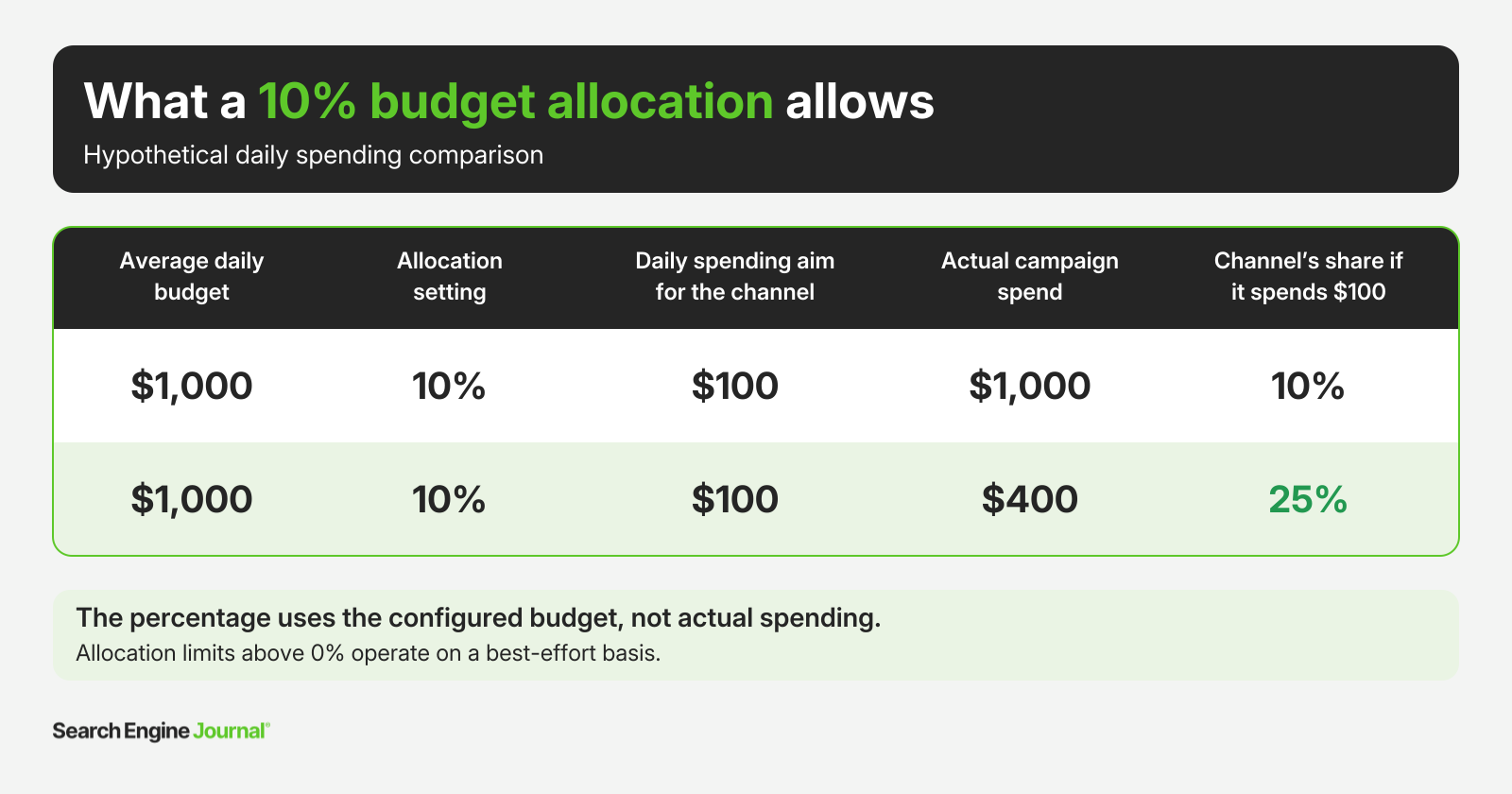
In the second row, the channel receives 25% of actual spending without exceeding the $100 represented by the setting. The advertiser has set a spending allowance that won’t necessarily maintain a 90/ten split.
Google also applies allocation limits above 0% on a best-effort basis, so daily spending can exceed the intended amount. Google says a 0% allocation prevents spending on the channel.
Before saving a percentage, calculate what it allows in dollars and check that amount against the spending you intended. Revisit it when changing the campaign budget, too. Increasing the budget from $1,000 to $2,000 doubles the allowance under an unchanged 10% setting.
An increase intended to capture more Search demand could expand partner spending as well. When raising the campaign budget, check whether the existing allocation percentage still reflects what you’re willing to spend on that network.
What To Do Before Changing Your Channel Settings
The controls may be available in your account before you have a clear direction on how to use them. Start with the campaigns where network spending has raised a concern, and review the results before deciding what to change.
The checks below can help you choose where to apply a restriction and assess whether it improves performance.
See also: Google Ads Bid Strategy Testing: What Changed In 2026
1. Check Network Results Before Restricting Spending
Start by looking at what happens after someone converts. A network taking more budget than you expected may still be bringing in qualified leads or profitable sales.
In Search campaigns, use Network (with search partners) to compare results across networks. For Performance Max, go to Campaigns → Insights and reports → Channel performance and select the campaign.
If the campaign tracks several conversion actions, review them separately. Give leads enough time to qualify before judging their quality. The same CPA can look very different once the sales team follows up, as this made-up example shows:
| Network | Spend | Form Submissions | Reported CPA | Qualified Leads | Cost Per Qualified Lead |
| Google Search | $6,000 | 60 | $100 | 24 | $250 |
| Search Partners | $2,000 | 20 | $100 | 2 | $1,000 |
Both networks bring in form submissions at $100 each, but qualified leads from Search Partners cost four times as much. Limiting that spending could help while the team investigates why fewer leads qualify. Sharing qualified lead or sales data with Google could also help bidding account for the difference.
For ecommerce, check how returns and product costs affect the sales each network brings in. A higher acquisition cost may be worth paying if those customers are more profitable in the long run.
2. Test Channel Settings In One Campaign First
Start with a campaign where you’ve identified a reason to change network-level spending. Applying the same settings across the account could affect campaigns that are already performing well.
Before making the change, note the campaign’s budget and bidding target so you can track what changed. Decide what you need to see afterward. Using the lead example above, that might mean spending less on unqualified inquiries without losing qualified leads.
In Search, open Campaign settings → Channel Prioritization to set campaign-specific priorities and an optional allocation percentage. Check which controls are available for the campaign type you’re working on.
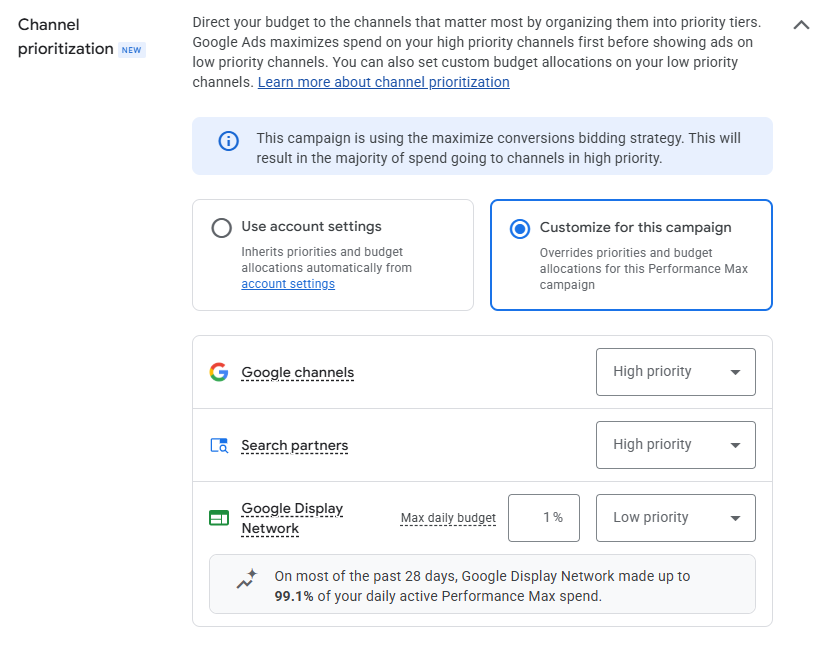
Avoid changing bidding targets or targeting at the same time, where possible. Otherwise, it will be harder to tell what the channel setting accomplished.
If the campaign uses a shared budget, check the other campaigns using it before saving. The allocation applies across that shared budget, so the change can affect more than the campaign you opened.
Account-level defaults can save time once you know the same approach makes sense for other campaigns. Until then, a campaign-level change gives you a smaller starting point to review.
3. Review Search Campaigns With Display Enabled Before February 2027
Search campaigns with Display enabled need a settings review before Google retires the existing Display Expansion allocation setup in February 2027.
To keep the current configuration, Google recommends setting Display to Low priority with a 50% daily budget allocation. That percentage reflects the existing setup; it isn’t Google’s recommended allowance for a new Display test.
Find the Search campaigns with Display enabled and check how much they currently spend on that network. If you want to maintain the setup, use Google’s recommended migration settings and monitor spending after the change.
You can choose a lower allocation if the results justify it. Note that you’re intentionally reducing Display’s allowance, so anyone reviewing performance knows the campaign settings changed beyond the migration itself.
Check What’s Changed Beyond Channel Spending
Once the settings have had time to affect ad delivery, the channel spending report can help show what changed. A larger Search share might look encouraging, but it could simply mean partner spending fell while Search spending stayed flat.
That could still be a good result. In the lead generation example, spending less on unqualified leads would help if qualified lead volume held steady. For ecommerce, a drop in spend would be less appealing if profitable sales disappeared along with it.
Those results may take longer to show up than the spending change itself. Leads still need follow-up, and recent clicks may turn into purchases later. The first few days of reporting may say more about the new spending mix than its effect on the business.
Google says the controls can be used in custom experiments, but experiments with multi-campaign shared budgets aren’t supported, and in those cases all channels are treated as the same priority tier. If your campaign runs on a shared budget, a before/after comparison may be your only option.
A before/after comparison can still help, although a promotion or seasonal change could explain some of the difference. The channel settings won’t necessarily deserve all the credit, or blame.
The limit may be worth keeping if it cuts wasted spend without hurting sales. If it saves money but costs the business profitable customers, loosening it could be the better choice.
See also: When Attribution Looks More Precise Than The Data Behind It
What More Control Means In Practice
PPC managers already decide how much they’re willing to spend on different networks. Until now, acting on those decisions has sometimes meant excluding inventory or changing campaign structure. These settings give advertisers another option when they want to limit spending without shutting a network off entirely.
That could make it easier to revisit an earlier exclusion or address a spending concern within an existing campaign. Google still decides how to allocate much of the budget, particularly across its owned channels in Performance Max. The additional control gives advertisers more room to manage that spending, even if it doesn’t reach every decision they’d like to make.
More Resources:
- Google Ads Is Automating More Decisions, Your Measurement Needs To Get Better
- How Do I Keep Control As Platforms Automate My Account? – Ask A PPC
- Google Ads Launches New Search and AI Max Experimentation Tools
Featured Image: ImageFlow/Shutterstock
