

Your online reputation is one of the strongest measures of your success as a business. Online life is real life; your online reputation is everything.
This means that keeping up with, and monitoring, your online presence is a highly important part of your digital marketing strategy.
It’s crucial that you find out about (and deal with) problems before they become a major issue, and that you can provide timely feedback.
Monitoring what people say about you online will help you maintain a good reputation.
So, how do you keep track of what people are saying about you online? Here are some of the best online reputation monitoring tools for you to check out.
1. Google Alerts
Google has several valuable free tools for marketers and SEO professionals, and Google Alerts is one of them.
Simply enter your company name the same way you’d enter terms in your niche you want to get alerts for.
For example, this is an alert for [search engine marketing]:
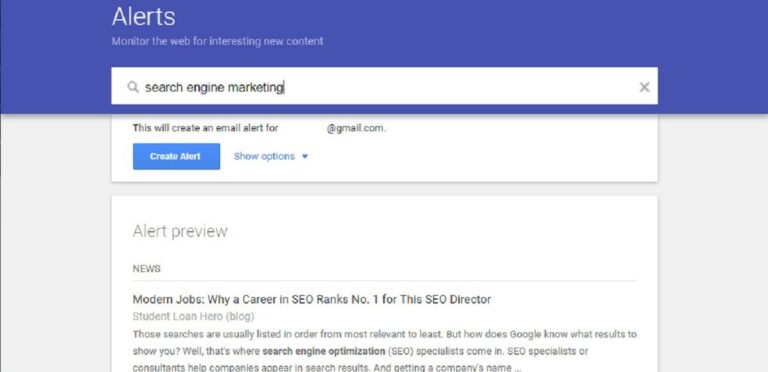
You’ll get email notifications of your mentions based on your preferences: as they happen, at least once a day, and at most once a week.
2. Social Mention
Social Mention monitors more than 80 social media sites including Facebook, Twitter, and YouTube.
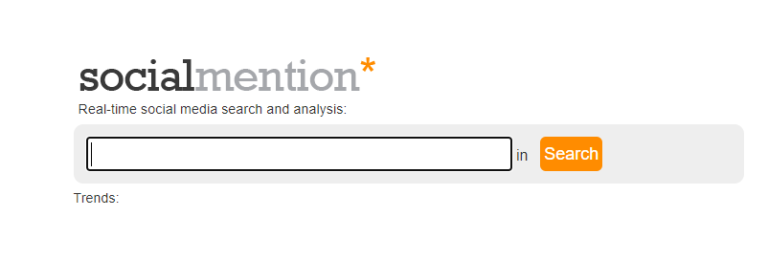
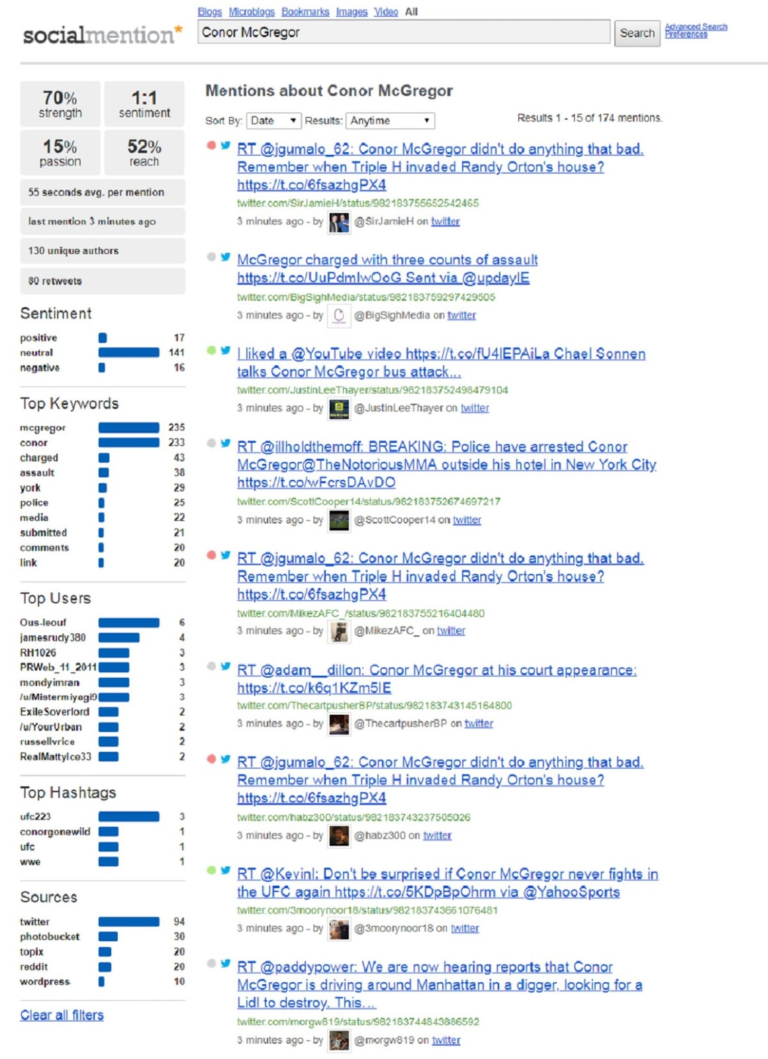
The results also display the following information to help you measure, monitor, and improve your brand’s reputation:
- Strength. This refers to the likelihood that your brand is discussed on social media.
- Sentiments. This is the ratio of positive mentions to negative mentions.
- Passion. This is the likelihood that people talking about your brand will do so repeatedly.
- Reach. Refers to the number of unique authors who write about or mention your brand.
Here’s what it looks like:
Another reason to use it: Social Mention is free.
3. SEMrush
SEMrush allows you to monitor online mentions, including sentiment scores and resource authority.
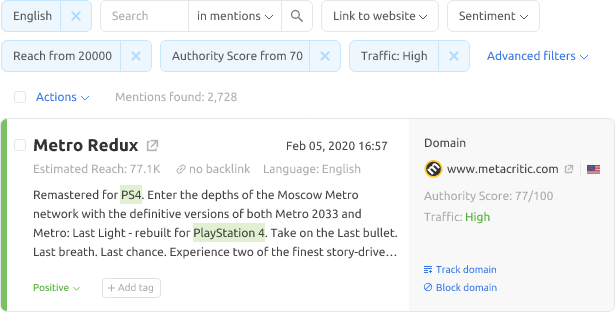
SEMrush allows limited use for free, but it’s part of the whole SEMrush package. Some things this tool allows you to do include:
- Find mentions without backlinks.
- Spot industry influencers.
- Measure your estimated reach.
- Track referral traffic from mentions.
- Identify mention sentiment.
- Analyze mentioning resource authority.
4. SentiOne
SentiOne helps you to pay attention to what your customers or others generally are saying about your brand.
You get access not only to real-time data but historical data, too.
You can track mentions of your brand, social profiles, or other keywords.
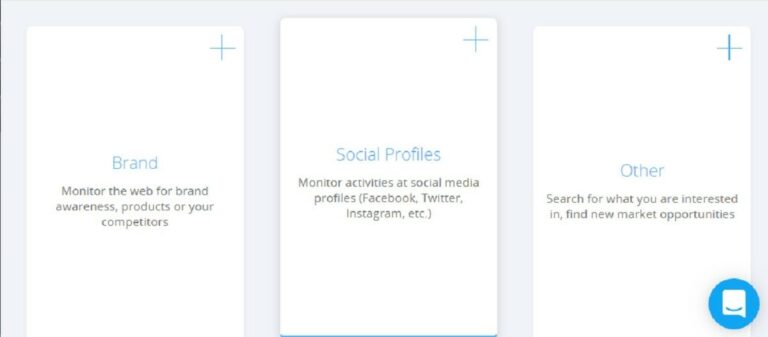
SentiOne scours thousands of web sources to find mentions of your brand.
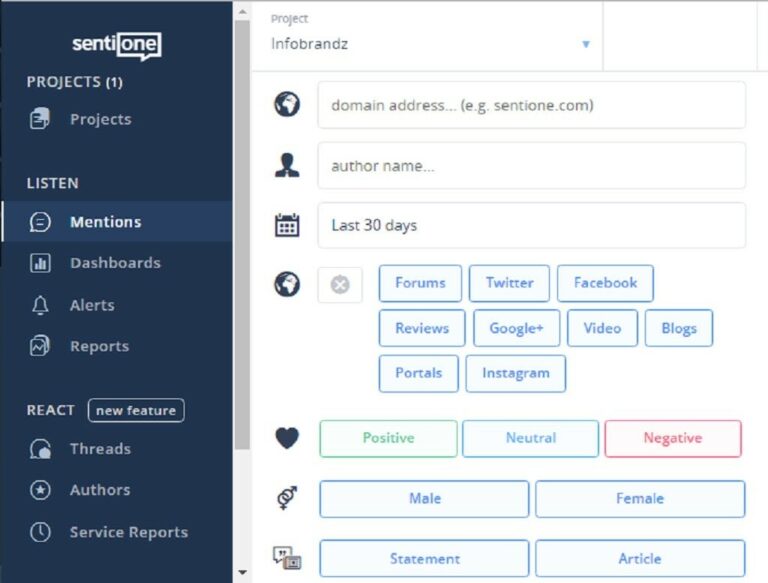
To avoid information overload, you can easily filter the number of keywords you’re tracking.
They also provide data visualizations and aggregations to help make the information easier to manage.
You can filter results into positive or negative mentions, where the latter can help you act quickly to avert crisis where necessary.
5. Reputology
Reputology is a review management and monitoring platform that helps multi-location businesses monitor for and manage reviews.
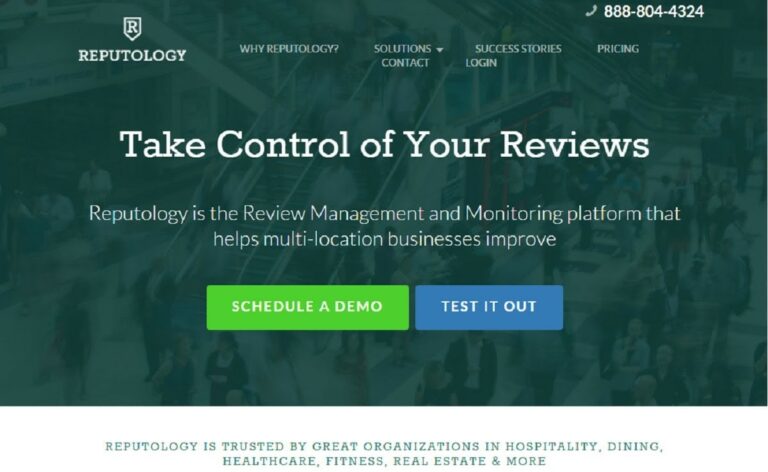
Apart from social media sites, you can “listen” to what customers are saying about your site from industry-specific review sites in the hospitality, dining, healthcare, fitness, and real estate niches.
Reputology helps you quickly deal with negative reviews by converting them into customer service tickets.
6. ReviewPush
This online review management software helps businesses with multiple locations to monitor social media and popular review sites (e.g., Facebook, Yelp, Google, Yellowpages, Foursquare).
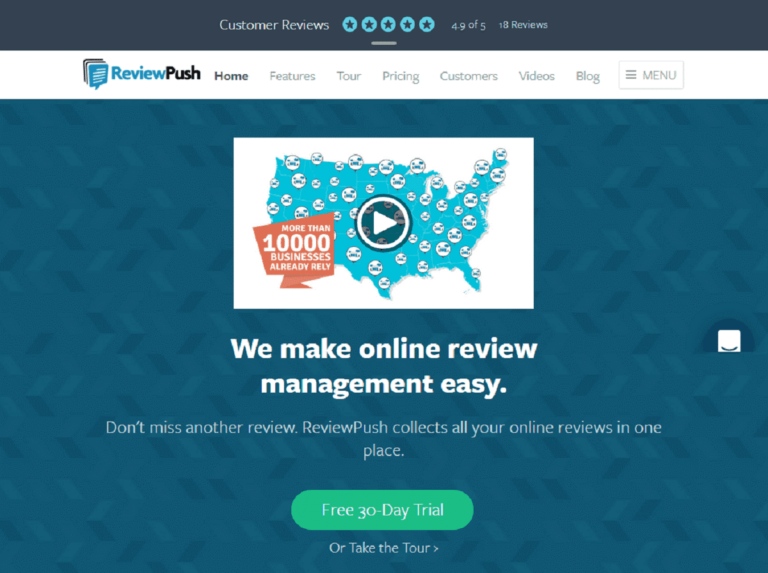
Not only do you get all reviews from any site in one dashboard, but when you set up email alerts you can respond to any review, positive or negative, directly from your inbox.
You can also see the review sites on the web or in your industry where your business is not yet listed.
Then, ReviewPush ranks your stores’ review performance online so you can easily see which store should improve its product or service delivery.
Multi-level reporting gives you reports from the corporate, regional, or store level.
7. Chatmeter
Chatmeter was designed to help companies collect and analyze customer feedback and improve the customer experience for multi-location brands and agencies.
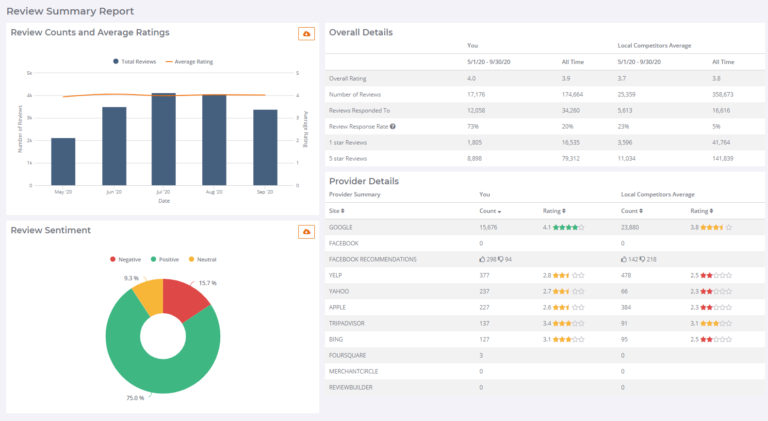
It notifies you via email of any reviews found on over 20 local search and review sites.
In addition, you’ll get notifications when there’s new content about your brand.
Chatmeter enables you to spy on your local competitors to see how you stack up against them and what you can learn from their activities.
Their widget allows you to share reviews from external sites on your website and store’s pages.
And, when you create a new profile on a listings’ site, your profiles on other listings sites are automatically updated with any current information.
They also give you a useful brand visibility score, to check your brand’s online presence against its biggest local competitors.
8. RankRanger
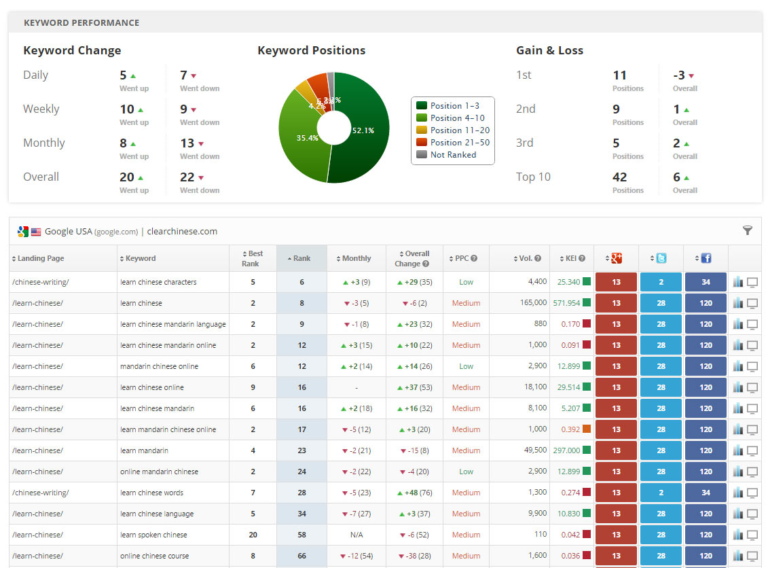
RankRanger is a commonly used SEO tool but has a robust reputation manager, as well.
This tool allows you to check the search engine results for negative or slanderous content, as well as monitoring SERP changes and how your work on reputation management impacts your visibility.
9. Reputation Health
If you have a medical practice, or you offer SEO and other online marketing services to medical practices, you may need Reputation Health.
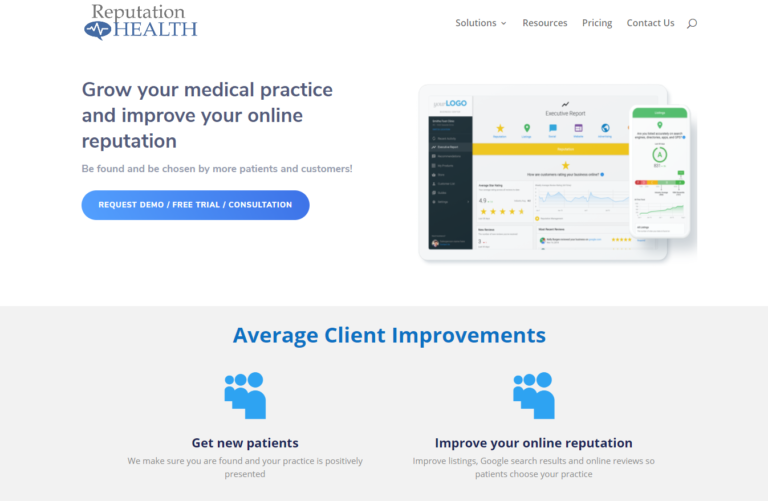
It offers reputation management and online review monitoring for physicians.
This tool also monitors 23 review sites related to the medical practice including DrScore, HealthGrades, UcompareHealthcare, and Vitals.
Reputation Health collects online mentions and practice reviews and sends you email alerts.
Quality metrics in medical practices are always important, but this kind of reputation monitoring can make sure you stay ahead of any issues.
10. Meltwater
What started as a press clipping service that scanned news sources to get keywords relevant to customers has since evolved into a full-blown media monitoring tool.
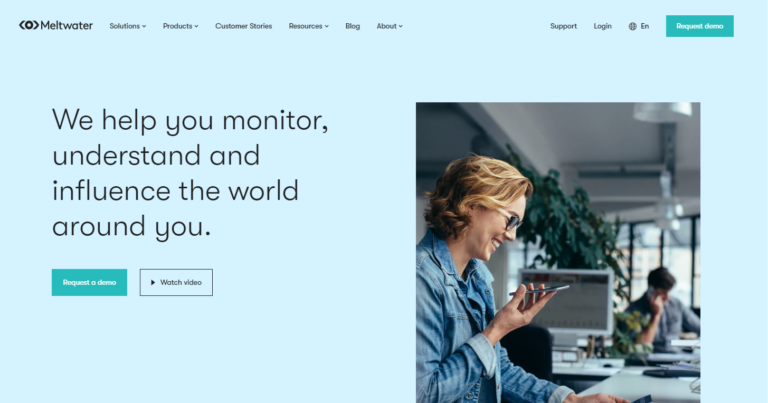
Today, Meltwater goes beyond press monitoring by adding social media listening into the mix with real-time analytics.
It still offers the largest global media database, so you can see all mentions in the news media, too.
If you’re keen on knowing who’s talking about your competitors or where they’re getting features, or how many mentions they’re getting daily, weekly, or monthly in comparison to yours, you can track that via Meltwater.
While you can see reports and analytics in your Meltwater dashboard, you can also transform these reports into presentations directly from the dashboard to share them with internal teams.
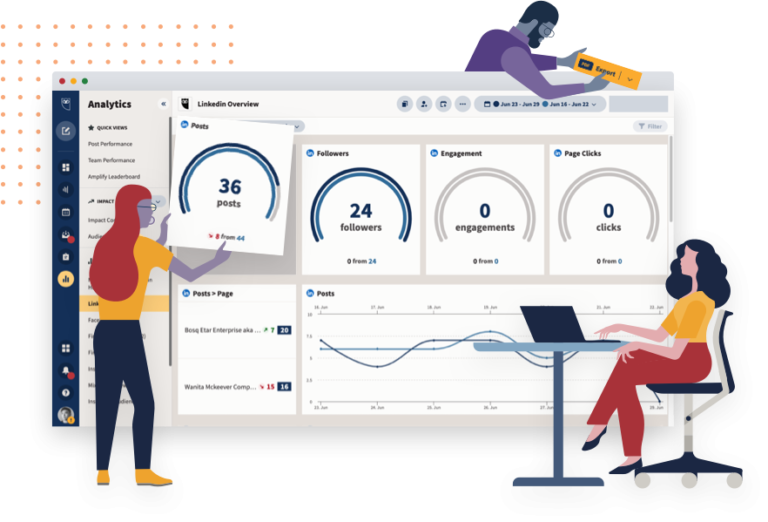
11. HootSuite
HootSuite allows you to manage security, automate compliance, and mitigate digital risk across all your digital channels with content scheduling and a workflow with approvals.
You can spot, track, and analyze sentiment trends, even building social intelligence into your strategy.
12. BuzzSumo
Brand monitoring might not be the first thing you associate with BuzzSumo, but if you’re already using the tool you should know it has robust and useful brand monitoring services built-in.
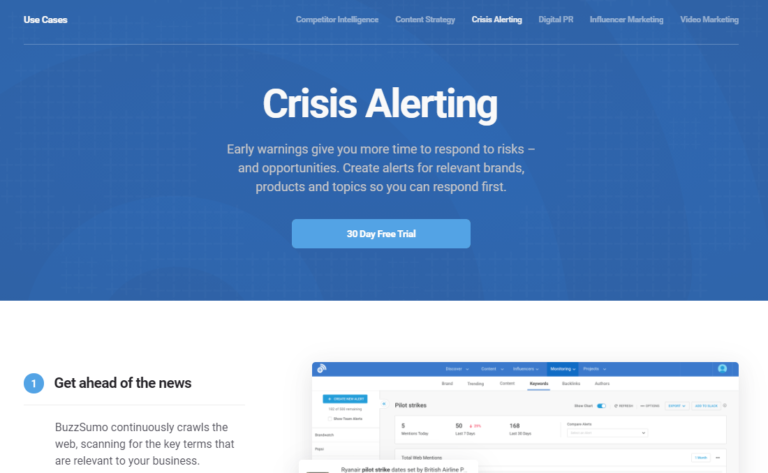
BuzzSumo allows users to keep an eye on coverage, monitor their competitors, and respond to industry news.
Conclusion
You can manually perform searches for your brand’s name on search engines or social media sites, but you’ll likely find a handful of results at best (not to mention the sheer drudgery and valuable time you’ll need to spend on such an undertaking daily, weekly, or monthly).
The tools above will help you more easily and efficiently monitor your online reputation.
Choose one that works best for your brand.
More Resources:
- How Negative Reviews Impact SEO
- Why Authentic Content Marketing Matters Now More Than Ever
- Reputation Management SEO: A Beginner’s Guide
Image Credits
All screenshots taken by author, December 2020
