

The phenomenon of zero-click searches is growing.
For terms like currency conversions, time zones, word definitions and “how to x” questions, nobody’s clicking through.
That’s because many new SERP features (e.g., paid ads, media elements, featured snippets) have taken over the top positions and are now make clicking on certain types of search results unnecessary.
So, what’s an SEO professional to do when Page 1 terminates such searches by providing answers directly?
In fact, this SERP phenomenon not only affects SEO pros, but also brands and content creators.
Content in such industries is receiving fewer impressions, lower CTRs (click-through rates), and much less organic traffic — even when ranking in the top organic positions!
So, here’s my question to you:
Is your online business or agency ready for the zero-click search hurricane headed your way?
If not, read on to learn all about what the zero-click world will look like, as you begin to fight back and begin using strategies to win those increasingly prized featured snippet spots.
What Are Zero-Click Searches Exactly?
A zero-click SERP is one where the answer is displayed directly at the top of a Google search result.
The search intent of the user is satisfied without having to click any actual search result links.
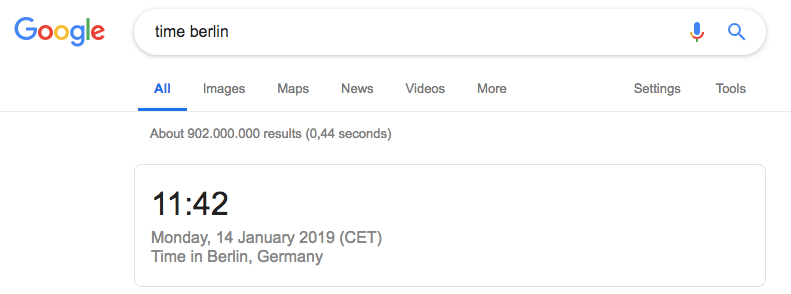
Zero-click searches are common on mobile and voice searches now because users are usually looking for short and practical answers to specific questions on such devices.
Examples of zero-click searches include:
- Database-style searches: Search queries around dates, time and time zones, currency conversions, age and names of people and products, etc.
- Dictionary and encyclopedia-style searches: Search queries around “what is”, “definition of”, etc.
- Map direction-style searches: Local search queries like “near me”, “vegan restaurant”, etc.
Today, 34.4 percent of all desktop searches result in no click. On mobile, 62.5 percent of users never click on search results.
If those statistics surprise you, brace yourself, because both have been trending up over the last two years.
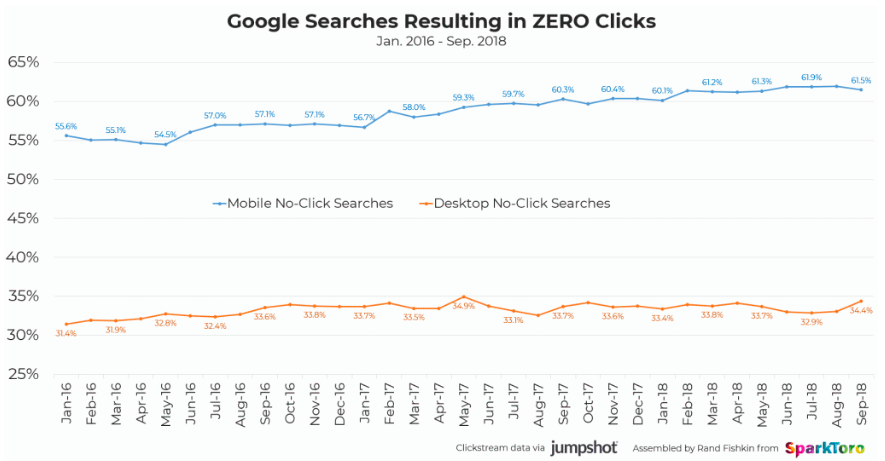
Ultimately, the new SERP elements (including featured snippets) at the root of all this is just a result of Google adapting to new search behaviors and mobile usage constraints.
Often, many zero-click searches are answered by a simple featured snippet or knowledge card.
A featured snippet works by pulling a short answer directly into the SERPs, thus removing the need for the user to click on an organic search result.
Similar features, like Knowledge panels or Google Instant Answers, are just database entries featuring facts and data.
While this makes the search experience better for users who receive their answers with less effort and time spent, it creates problems for content creators and SEOs who rely on organic traffic to run their online businesses.
And as you may have guessed, featured snippets can be more common and volatile for certain search queries than others.
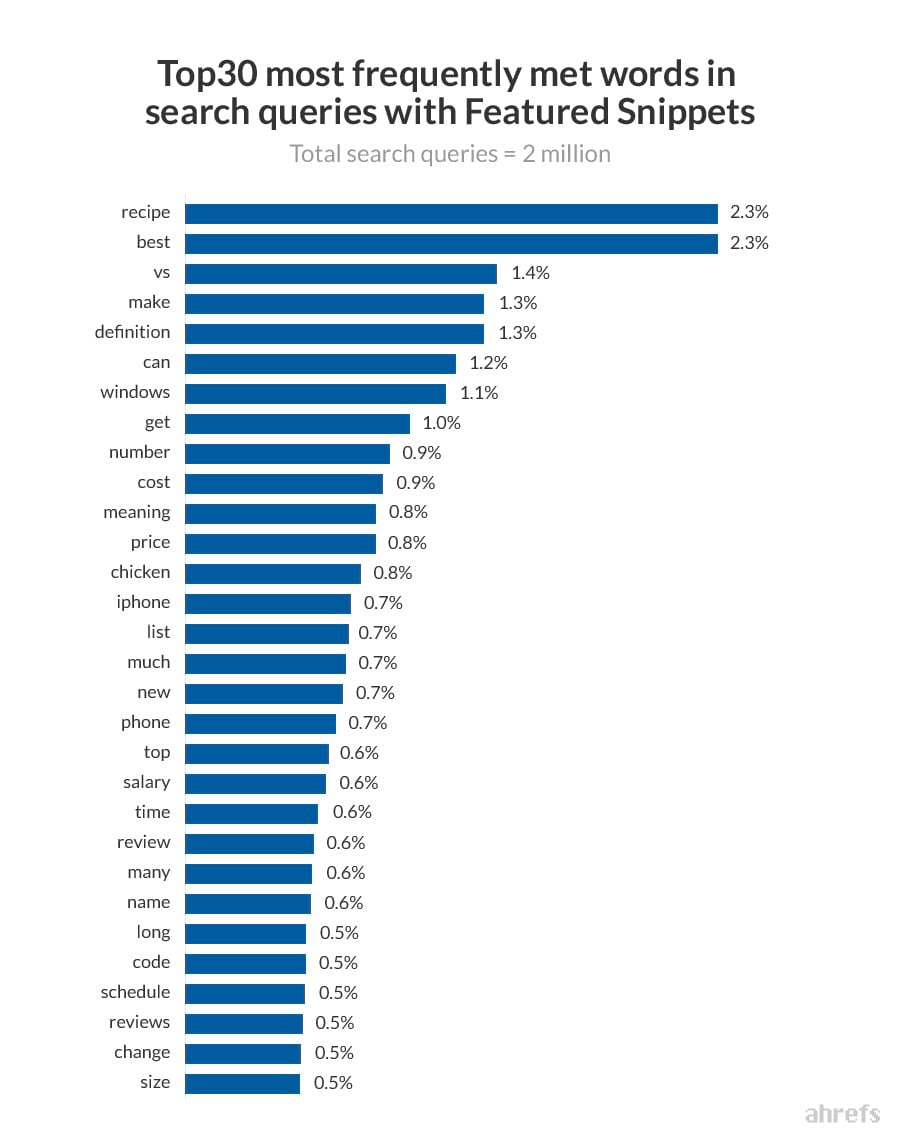
To show you what I mean, below is an analysis done by Ahrefs from May 2017, predicting which type of search queries appear destined to become featured snippets in the near future:
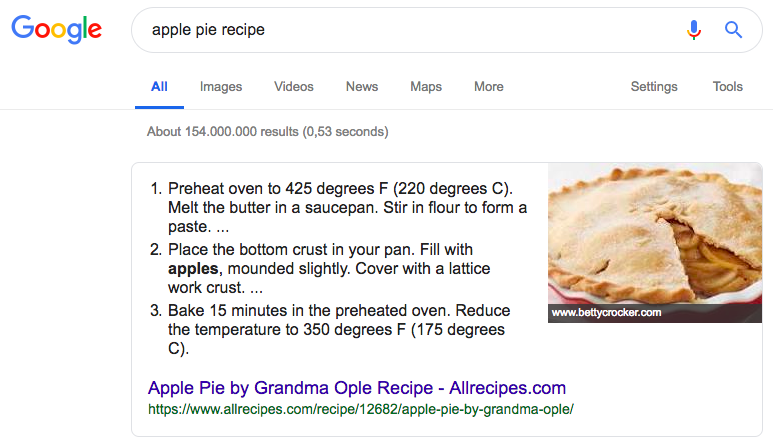
Featured snippets aren’t just affecting simple database-style searches, but also more complex queries like “apple pie recipe”.
How to Receive Clicks in 2019
In order to be competitive in SERPs dominated by these new zero-click SERP features, SEO professionals and content creators must adapt by using different tactics.
Remember that the main goal of SEO hasn’t changed: take up as much as prime digital real estate on Page 1 as possible and win the top positions.
There are three main strategies that will help you to be successful in this:
- Start using click metrics when making decisions for target keywords.
- Start a holistic On-SERP strategy to win more elements on page 1.
- Optimize your content to win featured snippets.
Why You Need to Factor in Click-Through Rates
Most SEO tools offer a CTR (click-through-rate) metric these days.
Moz provides an organic CTR score, while Ahrefs differentiates search volume by searches with clicks and searches without clicks using their CPS (clicks per search) metric.
And they offer these metrics for good reason: CPS should become one of the core metrics you include in your keyword research from now on to better identify which target keywords will provide the highest potential traffic ROI (return on investment).
In the past, SEO pros accounted for search volume, keyword difficulty, and current rankings when making decisions on which keywords to pursue, but today, CPS should also be firmly grounded in your keyword research process as well.
CPS has become a more accurate way to estimate traffic potential than just simple search traffic volumes alone.
How to Optimize for Featured Snippets
Featured snippets are important to win because they allow you — at least in theory — to gain more organic traffic without creating new content or backlinks.
That being said, featured snippets are usually won by those pages that are already ranking on Page 1. So, that means improving upon your previous ranking success is still important.
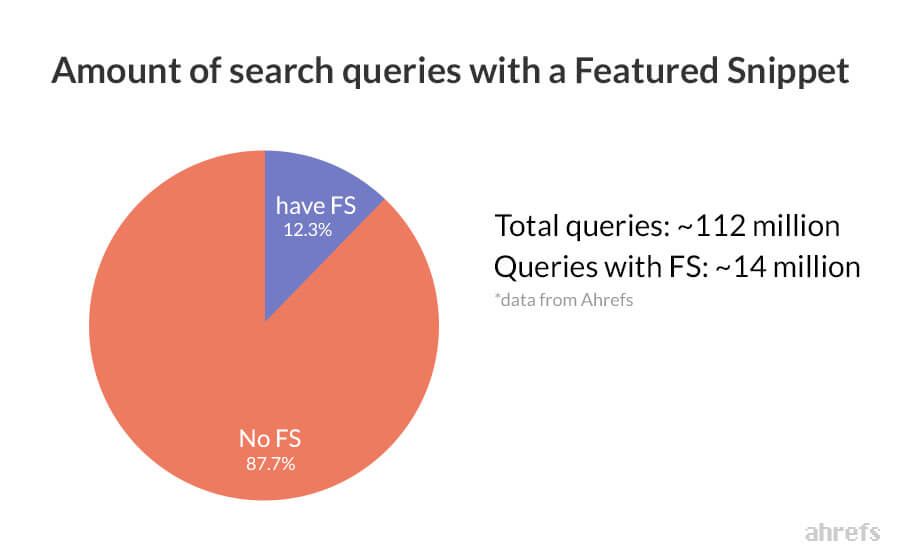
In fact, it might even be crucial because, according to Ahrefs, Google now displays featured snippets for a whopping 12 percent of all their search queries!
So, in order to rank for featured snippets, we will first identify high-potential opportunities and then create a step-by-step plan on how to update your relevant pages to win them.
To find quality opportunities, just follow these three steps:
- Pull a ranking report for relevant keywords.
- Filter by those keywords that are currently ranking between positions 1 and 10.
- Filter by those keywords that are already displaying featured snippets.
Boom! What’s left are your high potentials for winning the featured snippet.
Sometimes, it’s a good idea to double-check these findings, and you can use Google’s site: operator to type site:yourdomain.com “target keyword” into the search bar (remember to use an incognito window!). The first position is the page Google finds most relevant to that keyword.
And due to their growing importance in SEO, most rank tracking tools do track SERP features today.
Remember that a SERP feature can be anything that is not a traditional organic result: images, videos, paid results — or featured snippets — so make sure to turn this function on in whatever tool you’re using.
If you find that you already own a few featured snippets for some of your keywords, that also provides a good chance to sense check and carefully update them.
The Practical Approach to Optimize for Featured Snippets
Once you’ve determined which of your keywords currently:
- Display featured snippets.
- And have one of those keywords within the top 10 result position…
…you’ll want to rework your page to make it more likely to appear as the featured snippet.
We basically want to rework the page, so it contains a short and precise answer to the relevant question query you want to win.
The wording of your questions can be taken from:
- Existing snippets.
- The “people also ask” box.
- The related queries section at the bottom of the SERP.
AnswerThePublic can also help you find common questions that people ask on the web.
If you export the list of related questions for a search term it provides you with and then run them through your keyword tool, you may identify some with good search volume that would then be smart to also target.
Essentially, what you’re aiming to create is a headline that includes your target keywords with a corresponding paragraph answering the targeted search question.
Your answer should be around 54-58 words.
How to Win Definitions & Explanations
If your target keyword is a definition, you will want to start your explanation text with: “X is a…”.
That’s because you want to make sure that your page starts with a concise answer like this. Of course, you can add a more in-depth introduction and more storytelling beneath it on your page, but essentially, it’s a good idea to follow the inverted pyramid structure that journalists use.
This strategy works best for winning “what is” queries looking for encyclopedia-type answers.
Also, keep in mind that broad queries like “digital marketing” are often hidden “what” queries, since people are ultimately searching for “what is digital marketing.”
To double-check your intuition, check the existing Page 1 and note the dominant style of pages it features.
How to Win Lists & Tables
If the existing featured snippet displays a list (ordered or unordered), you will want to replicate this structure, too.
List style posts and pages work well to win “how to” and “why” queries looking to find step-by-step guides.
Tables are best for comparison queries.
Integrate Structured Data in Your Content Update
It’s also a good idea to mark up your answers using schema (for structured data).
Although doing so doesn’t seem to increase your chances of ranking, it can make it easier for Google to understand what your content and facts you’re displaying are about.
How to Win the Image
You might have noticed that the text and the image of the featured snippet are usually pulled from different websites.
In order to make your image appear, add an image directly under your paragraph, list, or table.
In order to win the image, use an image alt tag that is a variation of the headline you used to intro your featured snippet paragraph.
Bing. Done. Easy.
Dominating SEO in a Zero-Click Future
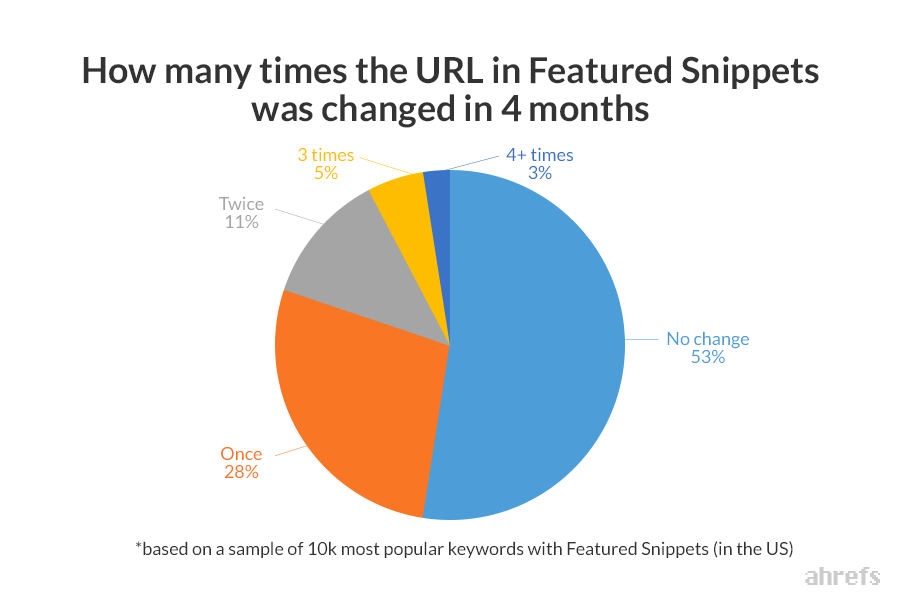
Luckily, featured snippets are not as volatile (yet) as they are sometimes portrayed.
The good news is that if you follow the optimization strategies laid out for you in this article, there’s a good chance if it wins you a featured SERP, you’ll keep it for weeks to months at a time:
With user behavior changing, mobile device browsing overtaking desktops, and with time spent on voice search becoming more mainstream, Google will continue adapting to the new search reality — just like SEO professionals should be doing.
Most likely, there’s no going back to times when Page 1 meant 10 organic positions — and at least one click.
But by implementing these featured snippet content upgrades to your keyword research and content creation process, you can update an SEO strategy that’s optimized for the Google of today.
And Now It’s Your Turn
Find a page on your client’s website that could be optimized for a featured snippet.
More Resources:
- 7 Types of Content That Dominate Position Zero
- How to Use On-SERP SEO to Increase Brand Awareness & CTR
- A Complete Guide to SEO: What You Need to Know in 2019
Image Credits
All screenshots taken by author, January 2019
