

Google announced it is experimenting with a new feature that allows users to see search results while on a web page, without having to click back to the search results. The goal is to help users compare search results and make it easy to quickly click away from a web page and visit a competing web page.
The new experimental Google feature is a side panel search that is one of two experiments that makes Google’s search results pages (SERPs) persistent.
When the presence of something lasts longer than normal or what is normally expected it is said to be persistent.
Both experiments show Google moving toward a more persistent style of search experience that makes the search results pages visible longer and accessible even when a user is on a web page.
The experimental side panel search results makes it easier for searchers to navigate away from a web page to a competitor web page.
Two New Google Search Experiments
There were two search experiments announced:
- Journeys
- Side Panel Search
Google Journeys
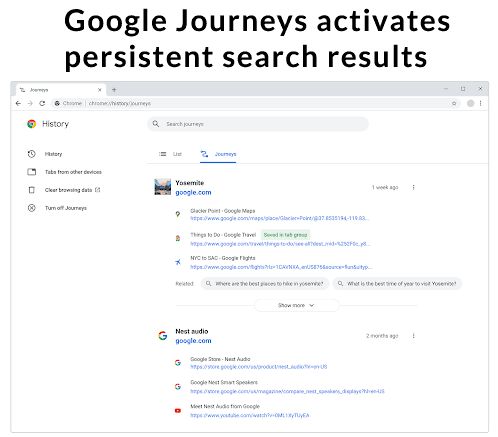
The first experiment is called Journeys. The feature collects past searches on a related topic and groups them together. The feature is like a history archive of past searches but they are grouped by topic, which makes it easier to find specific searches related to a topic.
The goal is to make it easy for Google users to use Google for researching topics.
Google describes the feature as a way to cluster web pages:
“If you’ve been researching a trip to Yosemite for the past few weeks, Journeys will cluster all the pages you’ve visited related to Yosemite so you can easily view them without having to sift through your browsing history.
You’ll also see related search suggestions so you can continue planning your trip right there.”
The Chrome Journeys data is not sent back to Google, it is information that is stored locally.
Google says they may consider expanding it in future versions so that the Journeys can be accessed across different devices.
Google Chrome Journeys Screenshot
Google Side Panel Search
The second experimental feature is a three-step process that starts with a normal Google search and then a click to a website.
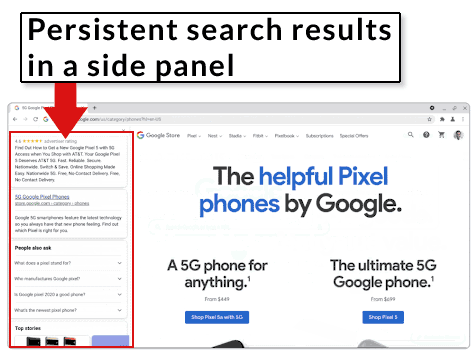
The third part is a side panel that opens up on the left hand side to reveal the search results that the user navigated away from moments ago.
From the Chrome browser side panel a user can scroll up and down through the search results while simultaneously still on the website.
If the user finds another search result more appealing they can click from the side bar and swiftly navigate away from the website they had previously navigated to from search.
Frictionless Way to Return to Google Search
The experimental side panel search result removes the need to click a back button to return to Google’s search results.
Side panel searching allows a user to more easily compare the page they are on to other pages in the search results and click back and forth between them.
Google Side Panel for Persistent Search Results
Google describes the new experimental feature as helping users compare search pages:
“To make it easier to compare search results and find what you’re looking for more quickly in Chrome, we’re experimenting with a new side panel in the Chrome OS Dev channel, so you can view a page and the search results at the same time.
This lets you view a page right in your main browser window without needing to navigate back and forth or losing your search results. The goal of this experiment is to explore how Chrome can better help users easily compare results…”
Screenshots of Side Panel Search
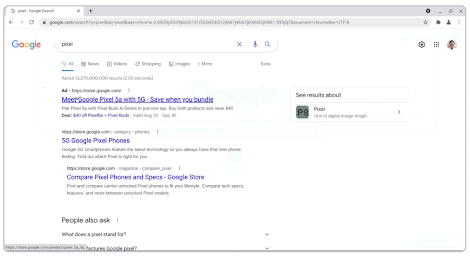
Screenshot of a Normal Search Result
Below is a screenshot of a normal search result from which a user selects a web page to visit.
How Persistent Side Panel Search Works
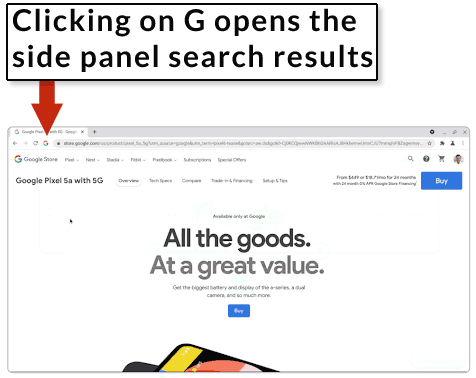
Below is a screenshot illustrating a user visit to a web page. In Google’s persistent search the Google “G ” logo serves to activate the side panel search results.
Screenshot of Side Panel Search Result
Below is what the side panel search results looks like. As you can see, the website is on the right hand side and Google’s persistent search results are on the left.
When and Where are the New Features?
Journeys is rolling out to the experimental version of Chrome, called Canary.
The side panel search is rolling out to the Chrome OS Dev channel.
The announcement stats that that if it rolls out to more OS platforms it will be search engine agnostic, meaning that it will work with the users default search engine.
Persistent Google Search Results
Persistent search changes how users traditionally interact with search. Rather than leave Google’s search engine results pages (SERPs) after clicking away to a website, the Google search results remain accessible in a side panel or are grouped together by topic in a Journeys panel.
The side panel search may be good news for sites that are ranked below the number one position and could help spread search traffic around.
Whether that makes users less likely to stay on a website and explore remains to be seen because this is a new experiment and there is likely no data to understand how this may affect user behavior on websites.
