How to Do Keyword Research with OneLook Wildcard Search

Keyword research is the long multi-step process that involves finding possible keyword phrases, synonyms and related terms, estimating the keyword difficulty and potential, and even researching competitors’ tactics as for keyword selection and promotion. This post looks at only one tiny, yet very important aspect: investigating the whole scope of possible keyword phrases and extensions (i.e. words that can be used together with the core term).

Onelook is the perfect tool for that – especially its wildcard (*) search that offers numerous ways to play with.

Onelook interprets a wildcard (an asterisk) as an substitute for any number of characters AND words (unlike Google that uses a wildcard as placeholder for any sequence of words).

Let’s see how this can be useful for our keyword research. Let’s say you want to research any possible phrases with the word “diabetes“, so all we need is to type [diabetes *] in Onelook search box to find all phrases in the database starting with “diabetes“. From there you can:

  1. Change the vocabulary preferences (choose to search for words, phrases or both);
  2. Browsing through the results you can even see some clusters.
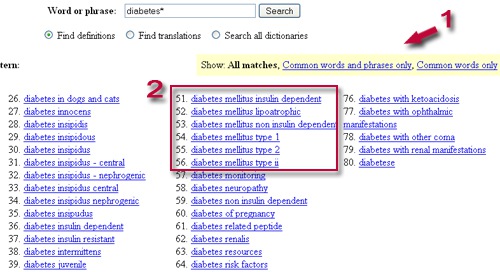
Onelook - wildcard search

Now, imagine you want to research phrases for both “diabetic” and “diabetes” – so what you need to search for is [diabet*]
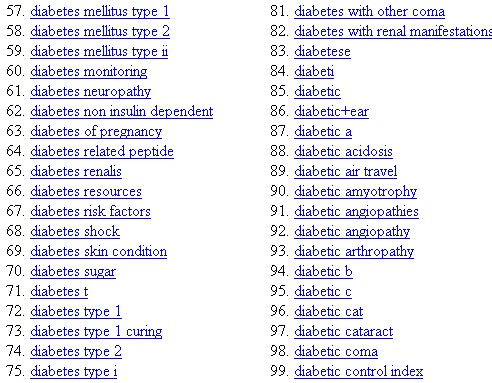
Onelook wildcard search

Or let’s say you want to research all phrases: where words both proceed and follow the core term – in this case we will need two asterisks: [* diabetes *]
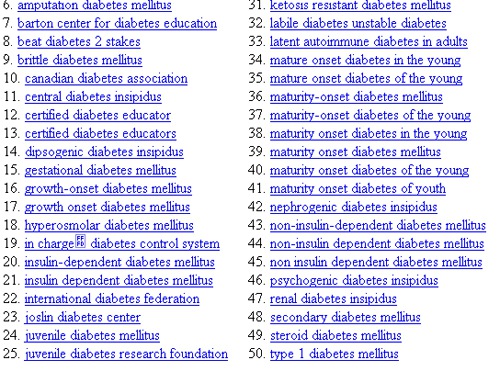
Onelook wildcard search

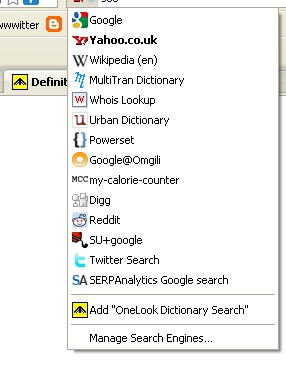
One final note: Onelook is an awesome tool that has many possible uses, so I recommend installing its search plugin (just navigate to the page, click on your search plugins and choose “Add OneLook Dictionary Search”) and play with it to your heart’s content.
Written By:
PG

Ann Smarty | My Blog Guest | @seosmarty

Ann Smarty is the blogger and marketer specializing in SEO consulting and guest blogging. Ann's expertise in blogging and tools serve as a base for her writing, tutorials and her guest blogging project, MyBlogGuest.com

More Posts By

Comments

  1. hugerewards says:

    This article is explained well, I like very much, thank you.

  2. Chandler says:

    Hi,

    Can you provide more specific details as to where to find the plugin? I have searched fairly extensively and see no area that you seem to describe.

    Of course, I did find your post exactly as you typed on three other SEO blogs, so I’m not sure which person actually wrote the article. :(

    • Ann Smarty says:

      When at search results, just click your search plugins and they will offer you to add OneLook.

      I added the screenshot at the end of the post.

  3. gudipudi says:

    nice tool ….but does this use google search data base to collect keywords ?

  4. PaulK says:

    Wow! Very interesting. Thank you.

  5. Nirupam Roy says:

    Thanks Ann for sharing the nice little information. It will help us definitely in future. I was aware of the tool onelook but did not know about its search plugin.

    Thanks once again

  6. Bennie Stark says:

    A good post about keywording.

    This is a good way to make a keyword search. Another good post Ann. This is a good tip for keyword search.

    Congratulations on your nice posts.

    Thanks.

  7. Rohit says:

    Very useful and vital information regarding SEOand keyword search

    thanx for sharing

  8. Chris Nielsen says:

    This tool may have some uses, but for SEO keyword research I do find that it falls far short in filling my needs.

    I will stick with the Google Keyword Tool:
    https://adwords.google.com/select/KeywordToolExternal

    I find I get many more results with search numbers, competitor numbers, and also PPC bid amounts. :-)

  9. vital information regarding SEO

  10. vital information regarding SEO