

Do you feel inspired each time you see your site within Google SERPs as you search? I bet you are! Here’s a quick tip on how to easier highlight your domain within Google results page whenever you search (by PoundBangWhack.com):
1. Install the Greasemonkey script (You will need to install Greasemonkey before that);
2. Make sure it works: search for anything in Google and make sure all Google results are highlighted in red;
3. Edit the userscript to specify your domain name; for that:
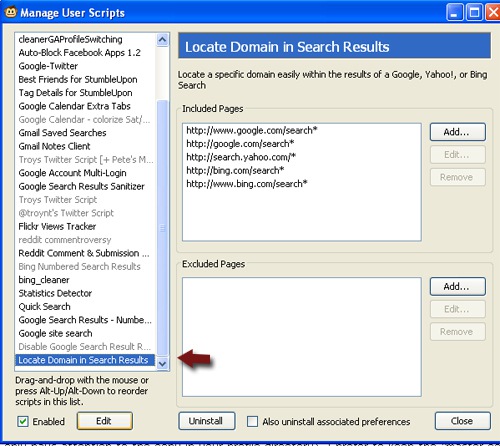
- Select Tools -> Greasemonkey -> Manage user scripts;
- Choose “Locate domain in search results” in the left-hand pane;
- Click “Edit”. This should open the installed version of the script in your favorite text editor. (If it doesn’t, choose any text editor to open the script);
- Add your domain name
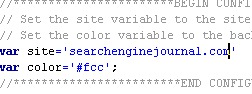
Note: you can also edit the color to highlight the listing.
Important update: thanks to Alex Hall, the script now allows to highlight multiple domains.
- You are done! You will now see your domain each time it pops up within Google SERPs:
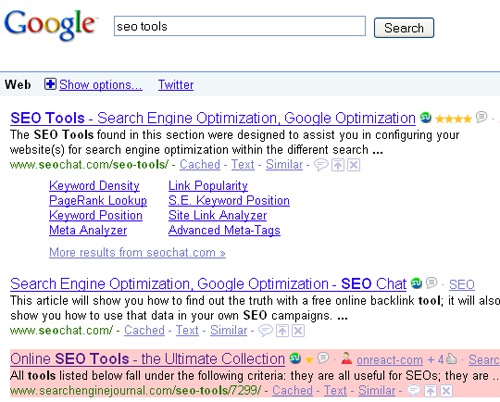
Known bugs: URLs that have the domain name in them, but are not the primary domain of the site are also highlighted.